Watch it work. No sound needed.
Each loop was made with Kimena's own code on real projects: its Auto, its Fix audio, its painter, its Library. The line under each one is what Kimena itself said it did.
Looks good, one click
Pedal the Cause, straight off the camera: hazy and flat. Auto measures the clip and solves ordinary sliders, which you can still move.
Kimena: "darker, deeper blacks, brighter whites, a little warmer, richer colour"
Sounds good, one click
The camera's own sound at a loud outdoor event. Fix audio listened, found the noise, and built the chain. Seen as a spectrogram: the haze is the crowd.
Kimena: "Removed loud background noise and evened out the level"
✨ Animate, shuffled
One line of type over frames of The Three Lights. Each press of Shuffle gives a different family of treatment, each one checked for legibility against the picture.
Painted by Kimena's KGL painter, the same code as the editor and the final render.
Every save is a version
The Three Lights' Library: seventeen cuts, each with its parent, its notes and what changed. Compare any two, or restore one as a new version.
A film cut in Kimena
The village, the sky city, the three lights and the fire: four frames from The Three Lights, the director's own animated feature, which Kimena was built to finish.
The Deck layer in design
Client decks as a strip of slides with transitions and motion, out as a link and an MP4. Shown with David's Dock.
The three to watch first.
One click for the picture, one click for the sound, and every cut you ever made, one click away. The other 56 lessons come with your invitation.
✨ Animate, in your browser.
This is Kimena's real painter and picker running on its 26 built-in presets. Type your own line, pick a frame, press Shuffle.

In Kimena the same bar sits on the clip: Tab shuffles, Shift+Tab goes back, Enter keeps it as one undo step.
Twelve lessons, then a real cut.
About seven minutes of video. Do each Try it in the practice project as you go, then open your own footage. Ticks are shared with Training.
The lesson videos need an invite code. Three of them, above, are open to everyone.
The keys on one page.
In Kimena, ? shows them all and Ctrl K searches every command.
playback
- Space
- Play / pause
- JKL
- Back / stop / forward; press again for 2×, 4×
- ←→
- One frame (Shift = 1 s)
- ↑↓
- Previous / next cut
- F
- Full screen
- B
- Titles on / off
- P
- Proxy playback on / off
tools
- V
- Select, move, trim
- C
- Razor
- CtrlB
- Cut at the playhead
- R
- Range across every track
- H
- Hand: pan
- Y
- Slip
- M
- Mark a stretch for your AI assistant
- D
- Draw on the picture
- hold `
- Tools ring at the mouse
cutting
- Del
- Delete (closes the gap with Ripple on)
- ShiftR
- Ripple on / off
- S
- Snap on / off
- IOX
- In / out marks; X clears
- U
- Mute the selected clip
- CtrlCVX
- Copy / paste / cut, across versions
- CtrlZ / Y
- Undo / redo
- CtrlS
- Save as a new version
source and shots
- , / .
- Insert / overwrite at the playhead
- W
- Swap a shot, keep the slot
- T
- Take grid; B A/B compares
- ShiftT
- Transform: move, scale, rotate
- /
- Find shots in plain words
- E
- Inspect the selected clip
sound
- A
- Sound under a picture clip, ±3 dB and mute
- CtrlL
- Detach / relink a clip's sound
- Alt+drag
- Move one side only (J- and L-cuts)
- \
- Mix before / after
everywhere
- CtrlK
- Command palette
- ?
- Every key
- F1
- Learn: guided lessons
- N
- Note on the selected take
- G
- Guides and safe zones
- Shift\
- Fit the whole film
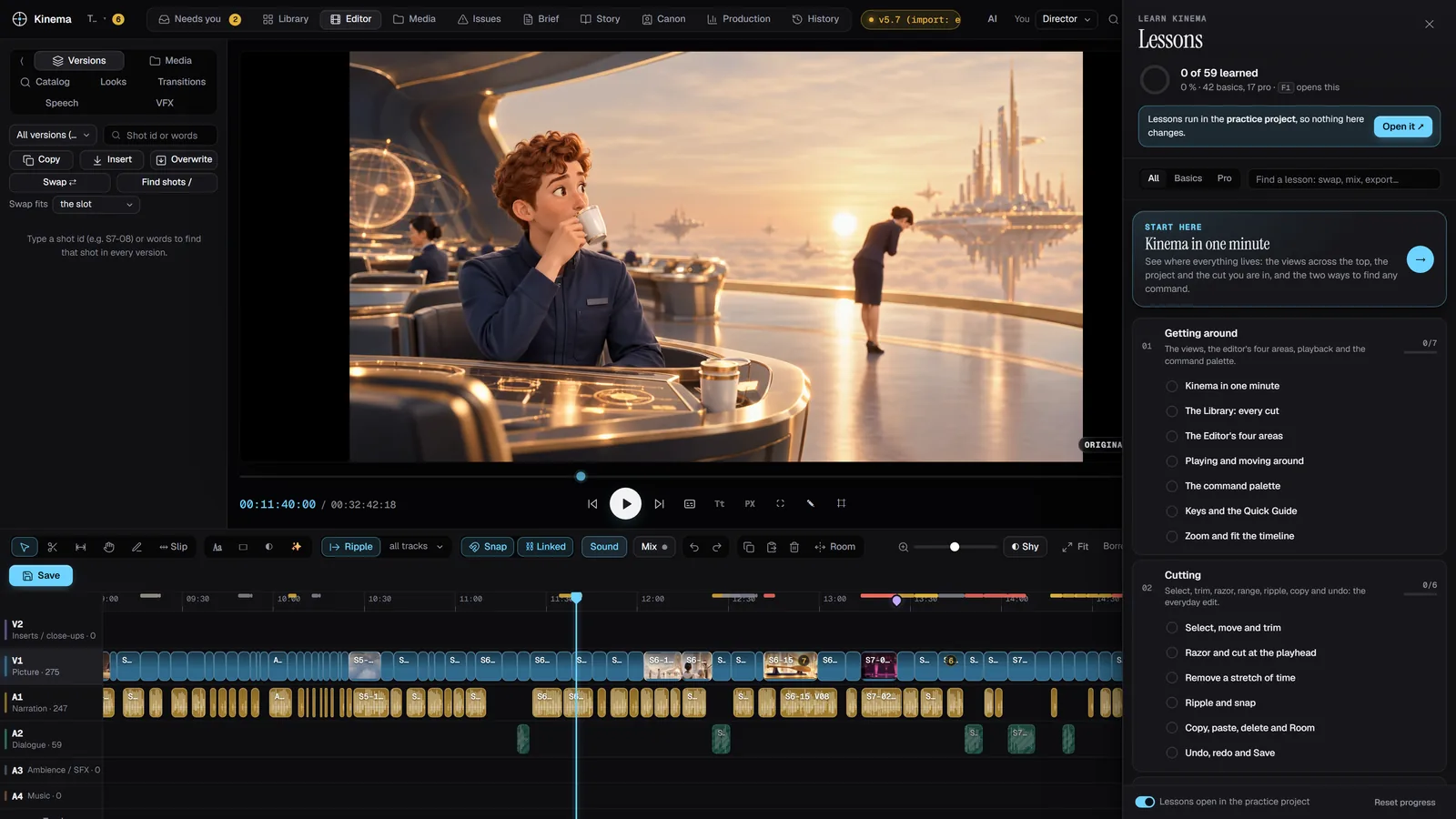
Lessons on the real buttons.
Press F1 or the Learn button. Each lesson rings the buttons it talks about, then gives you a Try it that checks itself when you've done it. Lessons run in a practice project, so nothing touches your work.
- 59 lessons in 10 chapters, basics and pro
- Works on the phone for the reading and watching lessons
- Reset the practice project any time